Working with Remotes
To be able to collaborate on any Git project, you need to know how to manage your remote repositories. Remote repositories are versions of your project that are hosted on the Internet or network somewhere. You can have several of them, each of which generally is either read-only or read/write for you. Collaborating with others involves managing these remote repositories and pushing and pulling data to and from them when you need to share work.
Remote repositories can be on your local machine.
It is entirely possible that you can be working with a “remote” repository that is, in fact, on the same host you are. The word “remote” does not necessarily imply that the repository is somewhere else on the network or Internet, only that it is elsewhere. Working with such a remote repository would still involve all the standard pushing, pulling and fetching operations as with any other remote.
Showing your remotes
To see which remote servers you have configured, you can run the git remote command. It lists the shortnames of each remote handle you’ve specified. If you’ve cloned your repository, you should at least see origin - that is the default name Git gives to the server you cloned from.
We don’t have any remotes configured at the moment. We were just working using the local repositories. Let’s try printing the remotes for out books repository.
git remote -v
Git pull and Git push
git pull and git push are two commands to pull and push the code from/to remote repository. You will be seeing them in action in the upcoming examples. git status will remain our friend even for verifying that we have a clean working directory and that our LOCAL branch is up to date with the REMOTE Branch.
When you have your project at a point that you want to share, you have to push it upstream. The command for this is simple: git push <remote> <branch>. If you want to push your master branch to your origin server (again, cloning generally sets up both of those names for you automatically), then you can run this to push any commits you’ve done back up to the server:
git push origin master
This command works only if you cloned from a server to which you have write access and if nobody has pushed in the meantime. If you and someone else clone at the same time and they push upstream and then you push upstream, your push will rightly be rejected. You’ll have to fetch their work first and incorporate it into yours before you’ll be allowed to push.
Adding remote repositories
Before you add a remote repository you should have a remote server available. GitHub is one of the services that provides remote Git service. If you don’t have a GitHub account, you need to create one and then create a new repository. Follow the presentation for the steps:
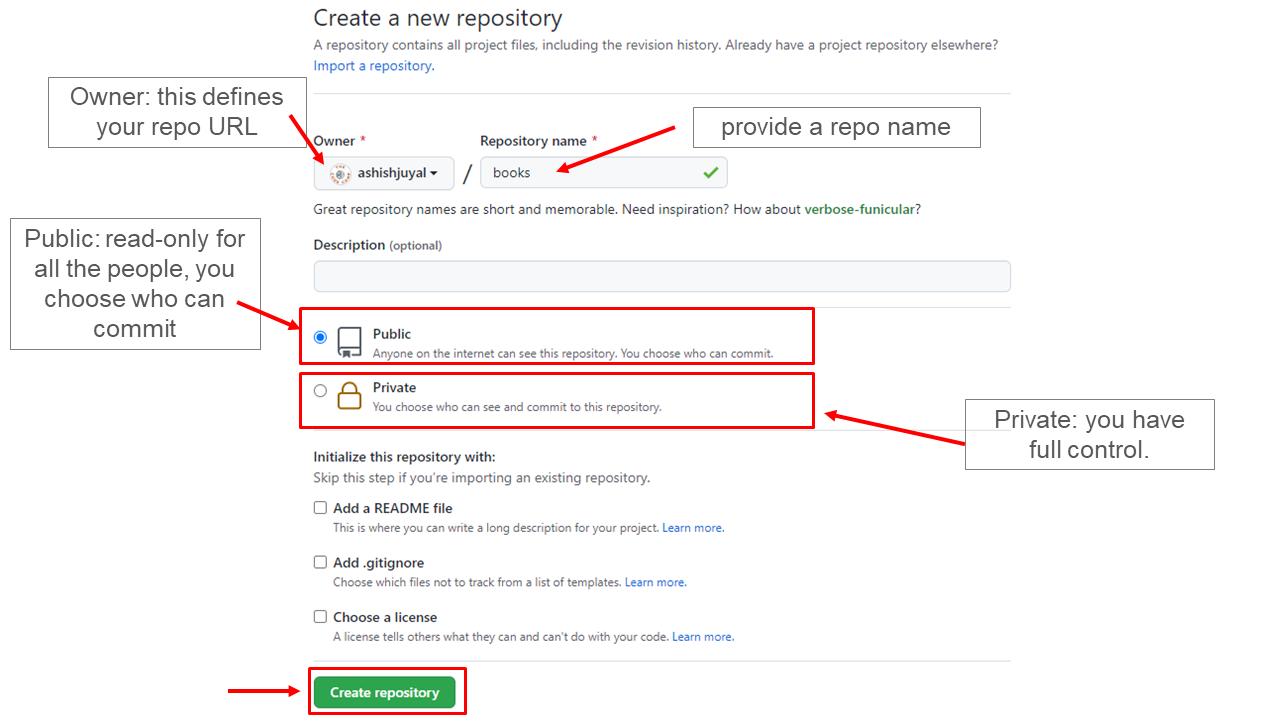
You will create a new repository names as books and we will push our local git repository to GitHub.
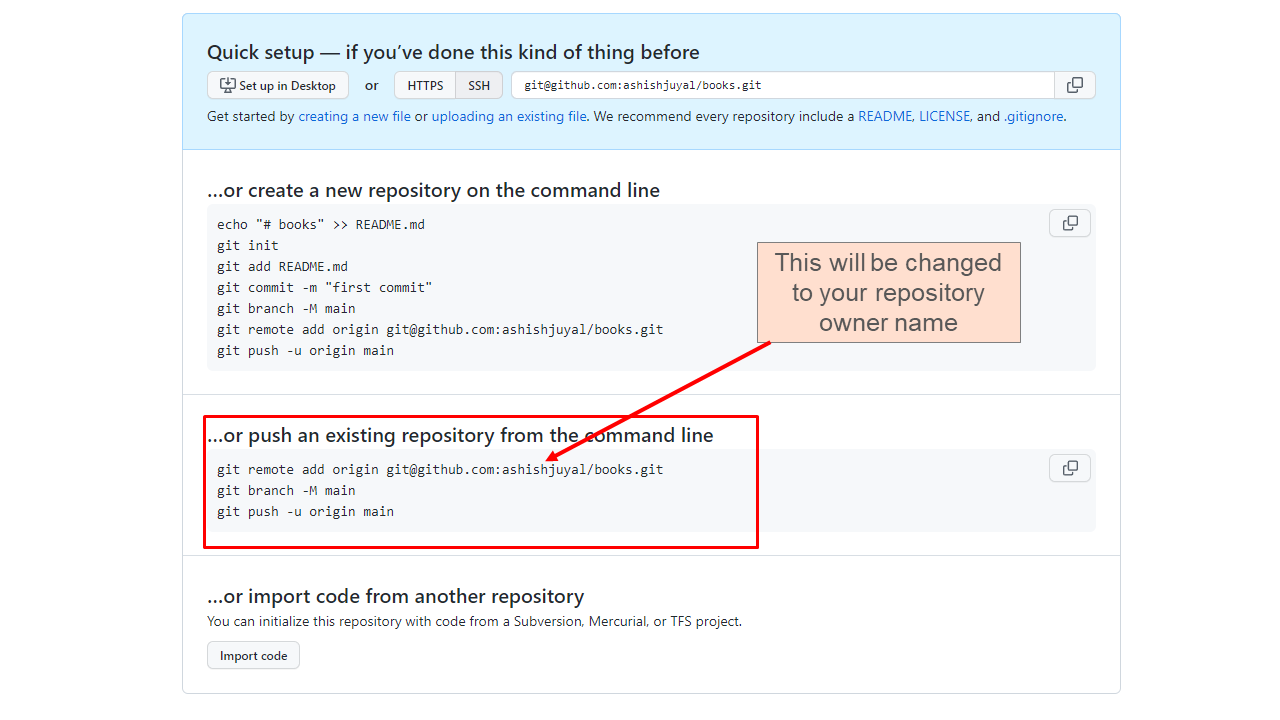
Once you have created the repository, it will give you option to
...push an existing repository from the command line. Follow the below steps to configure the remote for your local repository and pushing changes to GitHub.
# The remote URL will look like this:
git remote add origin git@github.com:<repo-owner-name>/books.git
# For me, the GitHub repo URL is as below, you will have a different URL. Copy that from the Quick setup page on GitHub:
git remote add origin git@github.com:ashishjuyal/books.git

# after adding the remote you can print the remote using
git remote -v
# below command will rename your branch name to main (incase if it was master)
git branch -M main

# pushing the changes and setting the upstream to origin main
git push -u origin main
If your SSH keys are not already configured with your GitHub account (we still have to do this step), the git push will result in an error:
Output:
The authenticity of host 'github.com (13.234.176.102)' can't be established.
ECDSA key fingerprint is SHA256:y2FACasdINAlw82N8SOttrVc/RITBDXz3/FubKgUfMS.
Are you sure you want to continue connecting (yes/no/[fingerprint])? yes
Warning: Permanently added 'github.com,13.234.176.102' (ECDSA) to the list of known hosts.
git@github.com: Permission denied (publickey).
fatal: Could not read from remote repository.

Please make sure you have the correct access rights
and the repository exists.
Generating a new SSH key
-
Open Terminal.
-
Paste the text below, substituting in your GitHub email address.
$ ssh-keygen -t ed25519 -C "your_email@example.com"
This creates a new SSH key, using the provided email as a label.
> Generating public/private algorithm key pair.
- When you’re prompted to “Enter a file in which to save the key,” press Enter. This accepts the default file location.
> Enter a file in which to save the key (/home/you/.ssh/algorithm): [Press enter] - At the prompt, type a secure passphrase.
> Enter passphrase (empty for no passphrase): [Type a passphrase]
> Enter same passphrase again: [Type passphrase again]
For more information, see Generating a new SSH key
Adding a new SSH key to GitHub
Follow Adding a new SSH key to gitHub and add the newly generated SSH key to your GitHub account.
Once the SSH key is set in your account, trying pushing again:
git push -u origin main
Output:
Warning: Permanently added the ECDSA host key for IP address '13.234.210.38' to the list of known hosts.
Enumerating objects: 13, done.
Counting objects: 100% (13/13), done.
Delta compression using up to 8 threads
Compressing objects: 100% (10/10), done.
Writing objects: 100% (13/13), 1.21 KiB | 34.00 KiB/s, done.
Total 13 (delta 3), reused 0 (delta 0), pack-reused 0
remote: Resolving deltas: 100% (3/3), done.
To github.com:ashishjuyal/books.git
 * [new branch]      main -> main
branch 'main' set up to track 'origin/main'.
Verify and Push your books branch
Go to your repository on GitHub: Change the repository name in the example URL: https://github.com/ashishjuyal/books
GitHub has only your main branch. To make the books branch available on GitHub, you also need to push that.
Inside your local repository:
git switch books
git push
Output:
fatal: The current branch books has no upstream branch.
To push the current branch and set the remote as upstream, use

    git push --set-upstream origin books
Git provides the help in the response, set the upstream:
git push --set-upstream origin books
Output:
Total 0 (delta 0), reused 0 (delta 0), pack-reused 0
remote:
remote: Create a pull request for 'books' on GitHub by visiting:
remote:      https://github.com/ashishjuyal/books/pull/new/books
remote:
To github.com:ashishjuyal/books.git
 * [new branch]      books -> books
branch 'books' set up to track 'origin/books'.
Books branch is now available on your GitHub repository.
Compare git log local and remote
# print the git log
git log
Open the remote commits page for books branch. Compare the local SHA1 with the remote
📋 Compare the local git commit with remote for main branch
Not sure how?
```shell # switch branch git switch main git log ``` Open the remote commits page for [main branch](https://github.com/ashishjuyal/books/commits/main).Delete branches local and remote
Once the work is completed on a feature, it is generally recommended to delete the branch. The branch needs to be deleted from local and remote.
To delete a branch from local, use:
git branch -d <branchname>
The
-doption is an alias for--delete, which only deletes the branch if it has already been fully merged in its upstream branch.
There is another option:
git branch -D <branchname>
The
-Doption is an alias for--delete --force, which deletes the branch “irrespective of its merged status.” [Source:man git-branch]
To delete Remote Branch, use:
git push <remote_name> --delete <branch_name>
Example:
git push origin --delete books
Pull Request
Pull request is created to propose and collaborate on changes to a repository. These changes are proposed in a branch, which ensures that the default branch only contains finished and approved work.
Let’s start with a new branch called java-code.
# make sure you are on the main branch
git switch main

# always take pull from the main branch before you start creating a new branch
git pull origin main

# create the branch
git branch java-code

# switch to branch
git switch java-code
create a file with name Book.java with this content:
import java.io.*;
import java.io.IOException;
import java.nio.file.Files;
import java.nio.file.Path;

public class Books {
  public static void main(String[] args) throws IOException {
    Path fileName = Path.of("books.md");
    String str = Files.readString(fileName);
    System.out.println(str);
  }
}
git add Book.java
git commit -m "java program to read and print all books name"
git push -u origin java-code
Open the books repository branches page and create a new pull request.
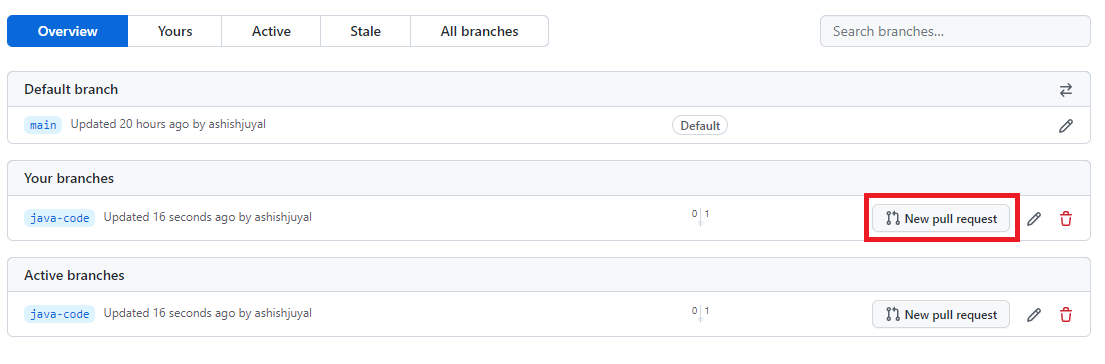
🎤 See, the java-code branch wants to get merged with main.

Click on Create pull request button and your pull request is ready.
Merging a pull request
Open the Pull Request page and select your pull request.
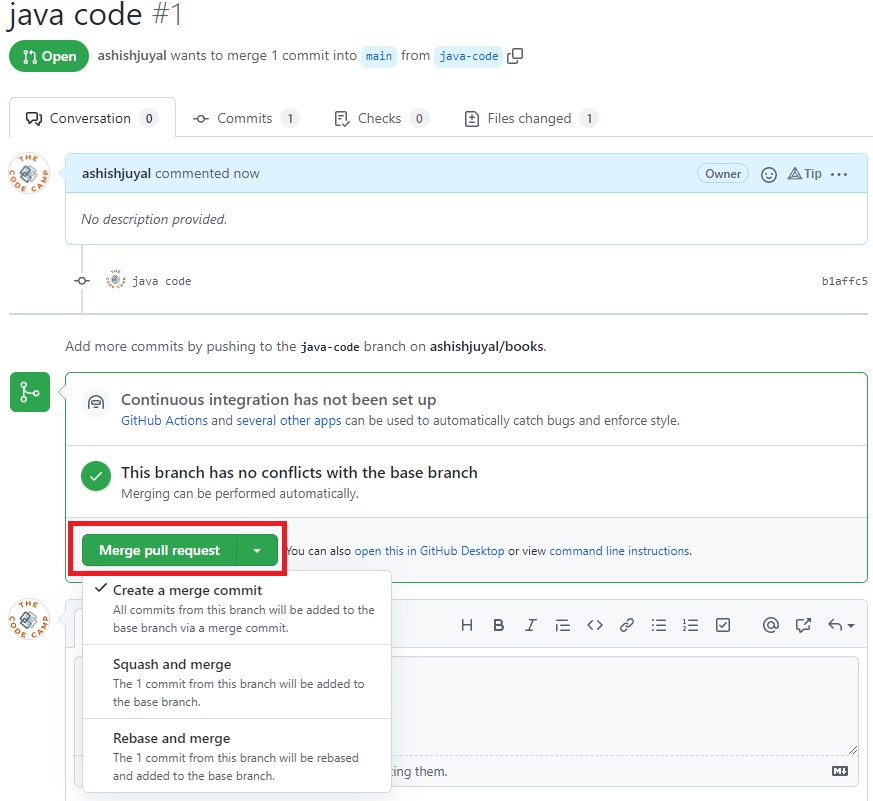
Click on “Merge pull request” and confirm the changes. Your changes will be merged to the main branch.